

Automatic Discord alerts: Twitch, YouTube and Kick
TL;DR
The fanping Discord bot automatically announces your Twitch, YouTube and Kick streams in your chosen Discord channels. Connect your streaming accounts and customize the posts once. When you go live, the bot shares the stream link with your community.
- Customize announcement templates with stream details, server emotes and role mentions for each channel.
- Automatically add a live role to your Discord profile during streams and remove it shortly afterward.
- Keep the existing live card updated, or delay the first announcement until you are past your starting-soon screen.
- Add countdowns, polls and voucher drops around your streams, then send a prepared recap with an available VOD.
- Free includes unlimited automatic go-live pings for one server and five channels. Pro adds scheduling, more capacity and click statistics.
Go live on Twitch, YouTube or Kick, and the fanping Discord bot posts the announcement in your chosen Discord channels. Connect your streaming accounts, customize your messages and role mentions, and let the bot share the stream link automatically. Live roles, countdowns, polls and recaps add more ways to keep your server informed.
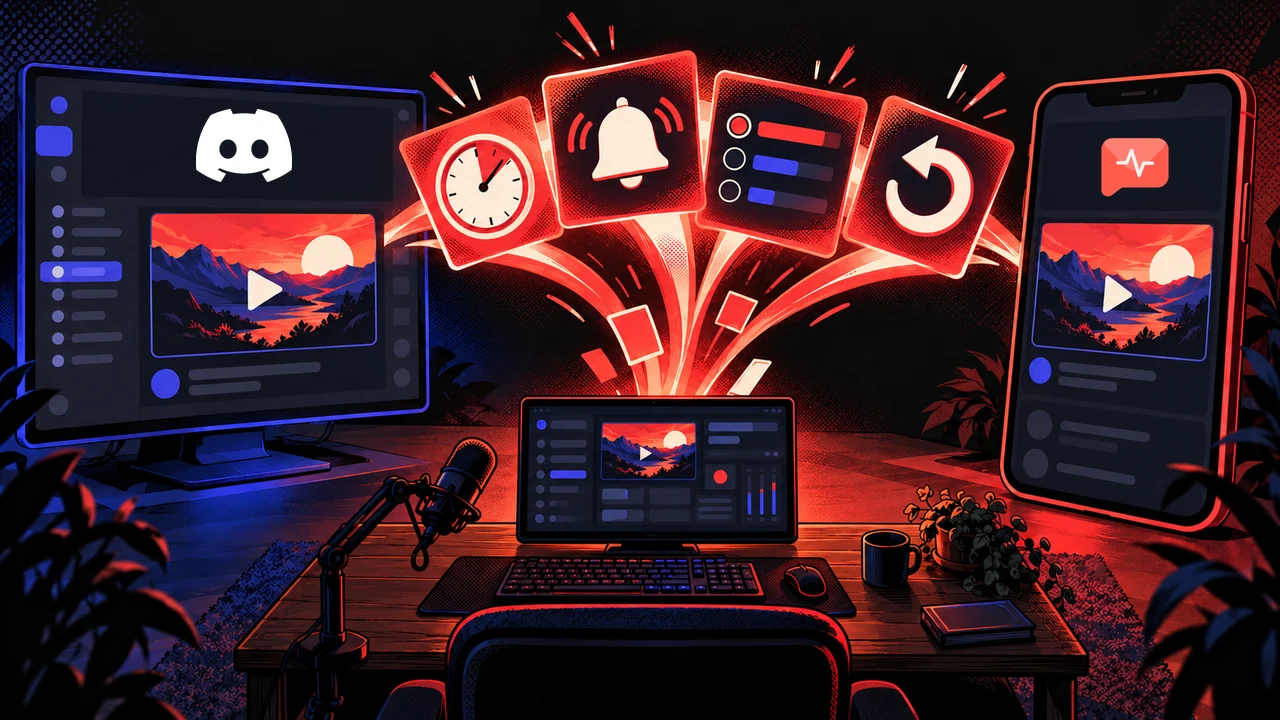
Automatic go-live announcements in Discord
When you go live on Twitch, YouTube or Kick, the fanping Discord bot posts an announcement in your chosen Discord channels with the link to your stream. Connect your streaming accounts and set up the posts in the creator dashboard. The bot handles the go-live announcement for each connected platform.
I built the bot because people are already in Discord, and your stream announcements should reach them there.
If you stream on Twitch one evening and YouTube the next, the same bot can announce both. The ping links to the platform you are live on, so your community can open the right stream from Discord.
Customize your Discord stream announcements
Your automatic posts should still sound like you.
In fanping, you can customize templates for each channel and ping type. Variables fill in details such as your stream title and game, and your server emotes keep the posts familiar. Send game-specific announcements to a relevant channel or role instead of tagging the whole server every time.
The go-live post can keep changing as the stream does. Live-card updates refresh the existing announcement, and its final state shows that the stream has ended. You can also delay the initial announcement until you have been live for a set time, useful when you open with a starting-soon screen.
Show your live status with automatic Discord roles
Let fanping add a live role to your Discord profile when you start streaming and remove it shortly after you finish. That gives people browsing the server's member list another way to spot that you are live, even if they have not opened the announcement channel.
Use one role across your streaming platforms, or choose separate roles for Twitch, YouTube and Kick. You can pick an existing role or let fanping create one. The live-role settings are included on Free.
What else can you announce with fanping?
Build anticipation with countdowns and polls
Take a Rocket League evening with viewers. A countdown gives it a start time, and the announcement can explain how people join the games. Discord displays the time in each viewer's timezone. You can send the ping yourself or schedule it ahead of time with Pro, while you are still planning the evening.
A poll gives fans a say in what you play next. Offer games you actually want to stream, then announce the plan once you have made the choice. Our introduction to pings explains how polls and countdowns fit into these updates.
Prepare voucher drops before you go live
If you have codes to give away, you can prepare a voucher drop for your next stream announcement. Share one code with the community or provide individual codes for fans to claim. The claim button appears in the Discord post, so the announcement gives people something to take part in.
You can also send a voucher drop during the stream.
Send a recap after the stream ends
Prepare a recap that goes out after you finish, with a delay you choose. It carries the stream title and duration, plus the games played for Twitch streams. When a VOD is available, the recap can include a card linking to it.
That gives someone who missed the live session a way to catch up.
Why choose fanping as your Discord stream bot?
Choose the fanping Discord bot if you want free automatic go-live announcements for Twitch, YouTube and Kick, with custom templates, live roles and prepared stream recaps. Through the same fanping account, you can also reach followers in the fanping app and add a Twitch channel panel.
Two bots can both advertise stream alerts and still offer different tools on their free plans. Stream-end messages with VOD links, for example, can be part of a paid bot plan. With fanping, prepared recaps with an available VOD are included on Free. You can also send countdowns, polls and voucher drops within your manual ping allowance. Scheduling is a Pro feature.
From our creator dashboard, you can send pings to followers in the free fanping app, including viewers who never join your Discord server. For Twitch streams, fanping Hub adds a free channel panel with your next stream and latest VOD, plus a live agenda and session recap when connected to your fanping account.
What is free, and when do you need Pro?
fanping Discord Free includes unlimited automatic go-live pings for 1 Discord server with up to 5 channels, custom ping templates and live roles. Reaction statistics are included, and live-card updates run for the first 60 minutes. Scheduled pings require Pro. The Discord Free and Pro breakdown lists the current limits.
Pro includes 3 servers with up to 10 channels each, 30 manual pings per week, scheduling and live-card updates throughout the stream. It also offers opt-in click statistics for your Discord posts. Use the reaction counts and clicks to compare which announcements get a response. They measure activity on the posts, not how many people stayed to watch your stream.
Connect Discord before your next stream
Open your creator dashboard through fanping, connect your streaming account and add Discord. Select the server and channels, then write your announcement template. If you start from the Discord App Directory, finish connecting your streaming account in fanping so the bot knows whose streams to announce.
If someone else manages your server, share a setup link from the dashboard. They must own the server or have "Manage Server" or "Administrator" permission. They can then configure its announcement channels through their Discord login without access to your full creator account.
Send a test post with silent mentions to your announcement channel. Check the stream link, wording and role mention before your next broadcast.