How fanping Hub connects your Twitch streams
TL;DR
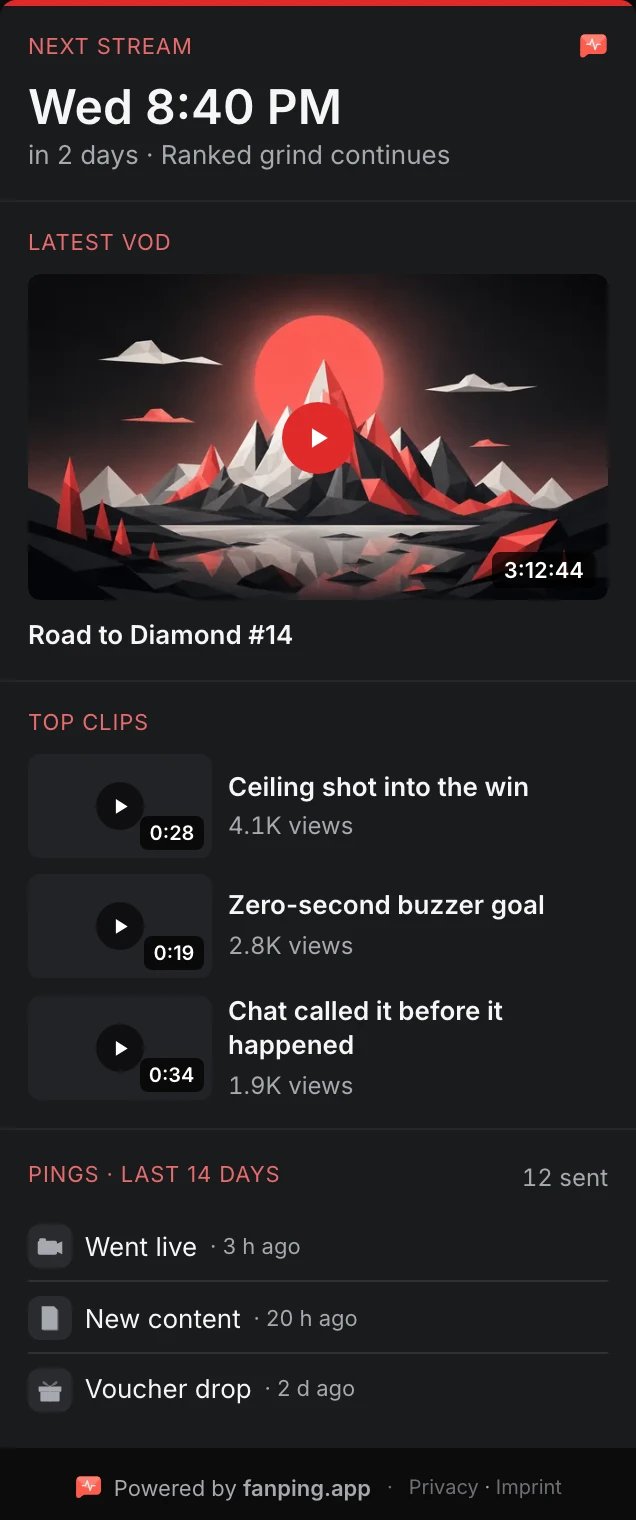
fanping Hub is a Twitch panel extension that shows your next scheduled stream and latest available VOD while you are offline. During your stream, viewers can check your agenda and follow category and title changes in the session timeline.
- Keep your Twitch schedule current so visitors can see when you plan to return.
- Install fanping Hub from the Twitch extension directory and activate it as a panel.
- Write an agenda so viewers know what you have planned for the stream.
- The live session timeline records stream start, category changes and title changes.
- Choose separate panel layouts for your live and offline states.
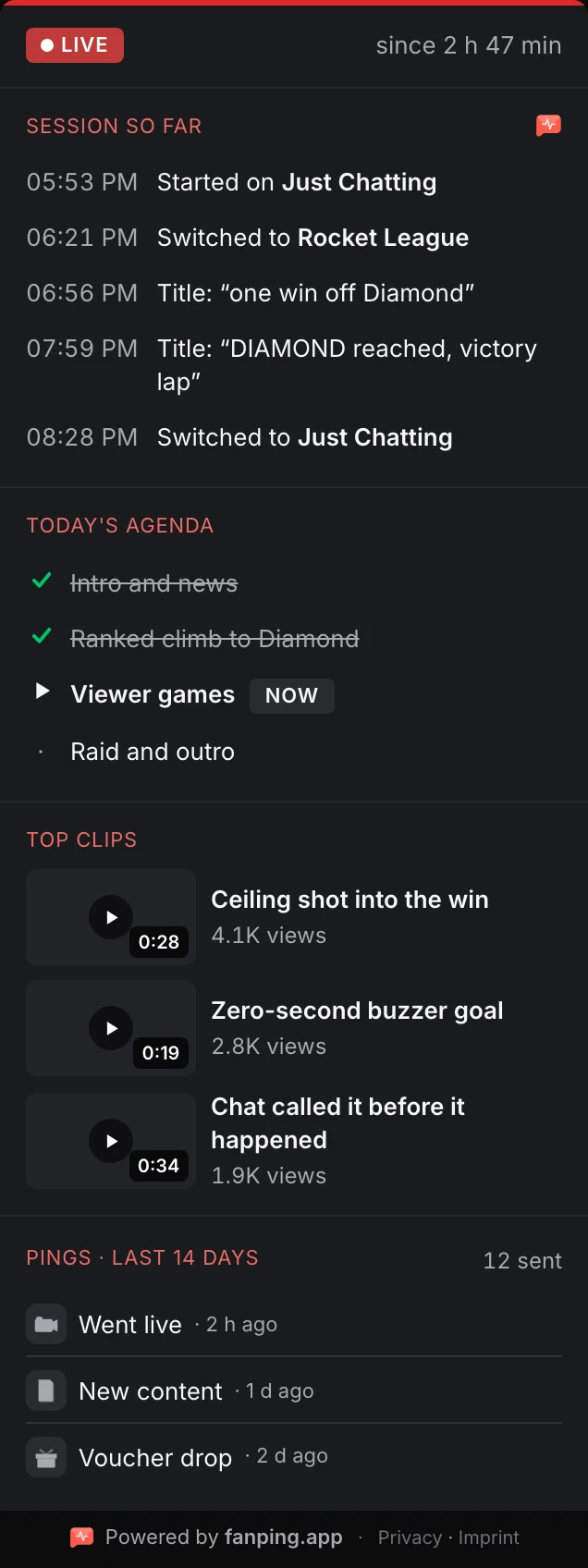
You end the stream. Someone opens your channel after you have logged off. fanping Hub shows them your next scheduled stream and latest available VOD. While you are live, your agenda shows what you have planned, and the session timeline records your category and title changes.
Your channel still has a job after the stream ends
The next stream starts where the last one ends.
That is how I think about a streaming channel. You finish the broadcast, but someone can still arrive on your page with time to watch, curiosity about what they missed or an interest in the next session. I want them to be able to watch the VOD and see when I plan to go live again.
Our first release of fanping Hub, version 1.0.0, starts with that gap between broadcasts. The Twitch extension puts the next scheduled stream and latest available VOD on your offline panel. During a broadcast, it gives viewers a creator-written agenda and a timeline of the current session.
A panel should earn its space on your channel. For me, that means answering something a visitor actually wants to know: when you will be back, what you have planned or what has happened since you started.
Show your next stream and latest VOD while offline
Imagine someone opening your channel after you have finished for the evening. They missed the live broadcast, but they can still watch the latest available VOD. Beside it, the next scheduled stream gives them a date to keep in mind. They can catch up on the recording now and check when you will be live again.
Those cards depend on what is available. Keep your Twitch schedule current if you want the next-stream block to be useful. The VOD card needs a recording that viewers can open. A panel cannot supply a plan you have not made or a broadcast you have not made available.
Before you sign off, give viewers something to look forward to: the next game, the next part of a playthrough or the next chance to join in. Put the date in your schedule while the plan is still fresh.
Show late arrivals what you have planned
Now consider someone joining while you are already live. They can see what you are doing, but they may not know whether this is the main event or the warm-up. Your agenda gives them the plan. You write it yourself and manage it through the extension's live configuration in Twitch Stream Manager.
For example, a stream could open with Just Chatting, move into a game and finish with questions from chat. Someone who missed the start can check the agenda to see that you have questions from chat planned after the game. If the plan changes, update it. If you drop the game from your plans, remove it from the agenda too.
The session timeline shows when you started and when you changed the category or title.
It records the stream start, category switches and title changes. A viewer can follow those changes without asking you to repeat them. It does not know which conversation mattered most or turn the broadcast into a written highlight reel. The timeline belongs to the running session; after the stream, the latest available VOD provides the way back to the recording.
Where the Hub fits into fanping
I see the time before and after a stream as part of the experience. With fanping, you send pings to connected Discord channels and fans who follow you in the app. Use them to announce your next stream, tell fans you are live or send an update after you finish. They can hear from you without already having your Twitch channel open.
For example, you could send a ping before a stream where you plan to play with viewers. On your channel, the Hub's agenda shows when viewer games fit into the evening. After you finish, the offline panel gives someone who missed you the latest available VOD and your next scheduled stream.
Our introduction to pings and how fans receive them explains the Discord and app side. Viewers do not need the fanping app to read the Hub on Twitch.
Give the agenda something worth waiting for.
If viewer games come after the main game, say so there. Someone joining late can see that they still have a chance to take part.
Add the Hub to your Twitch channel
Install fanping Hub from the Twitch extension directory and activate it as a panel. The fanping Hub setup page walks you through the setup. Connect your Twitch account through the fanping creator dashboard to link your channel and use the connected features.
Choose which blocks appear and arrange them separately for your live and offline states. Put the information you want visitors to find first near the top. Then write an agenda you are willing to keep current and check that your next scheduled stream is accurate.
After your next broadcast, open your offline channel page. Follow the VOD link, check the next date and check whether someone who missed you can watch the recording and see when you will be back.